

SALOPHA on all your devices
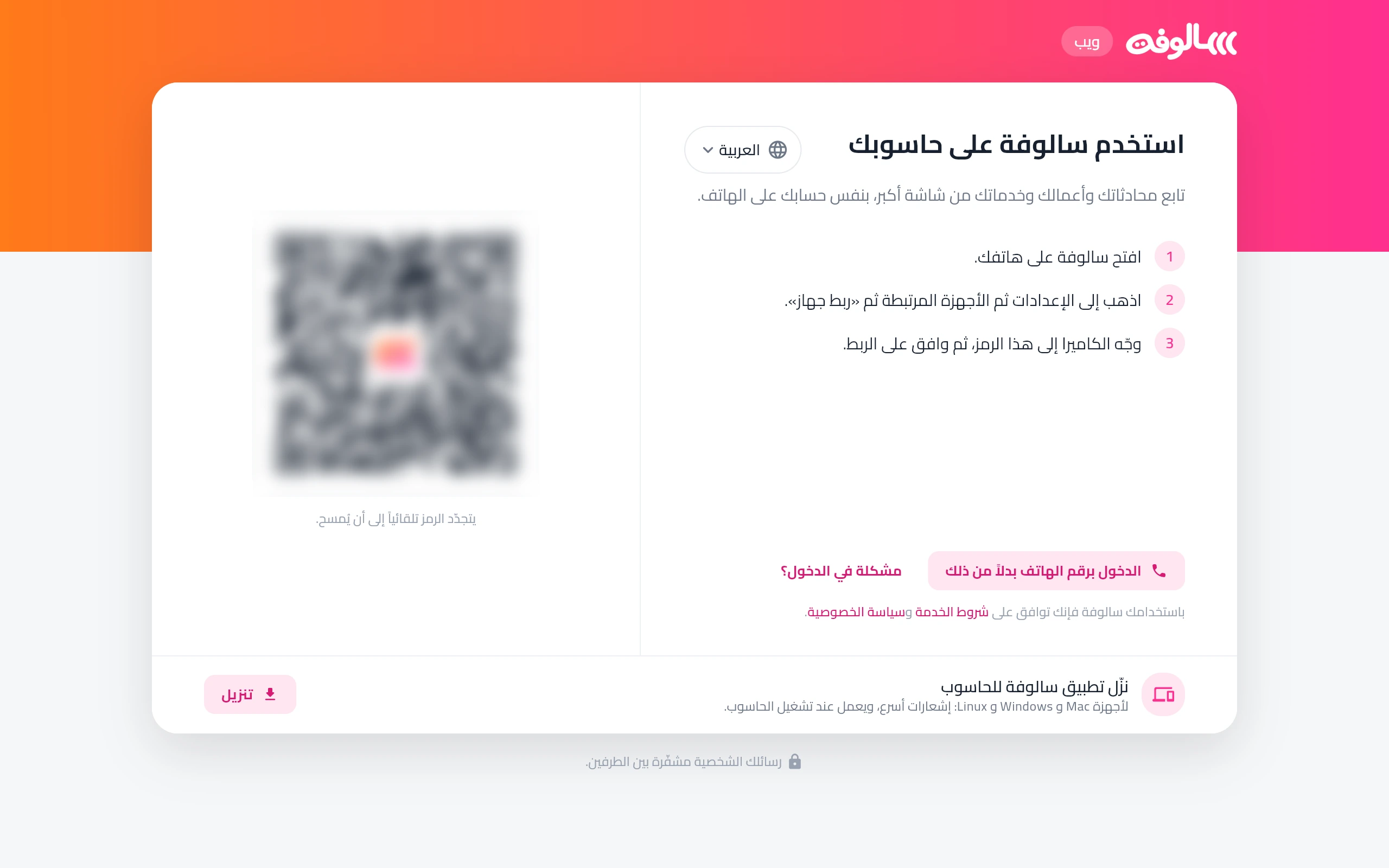
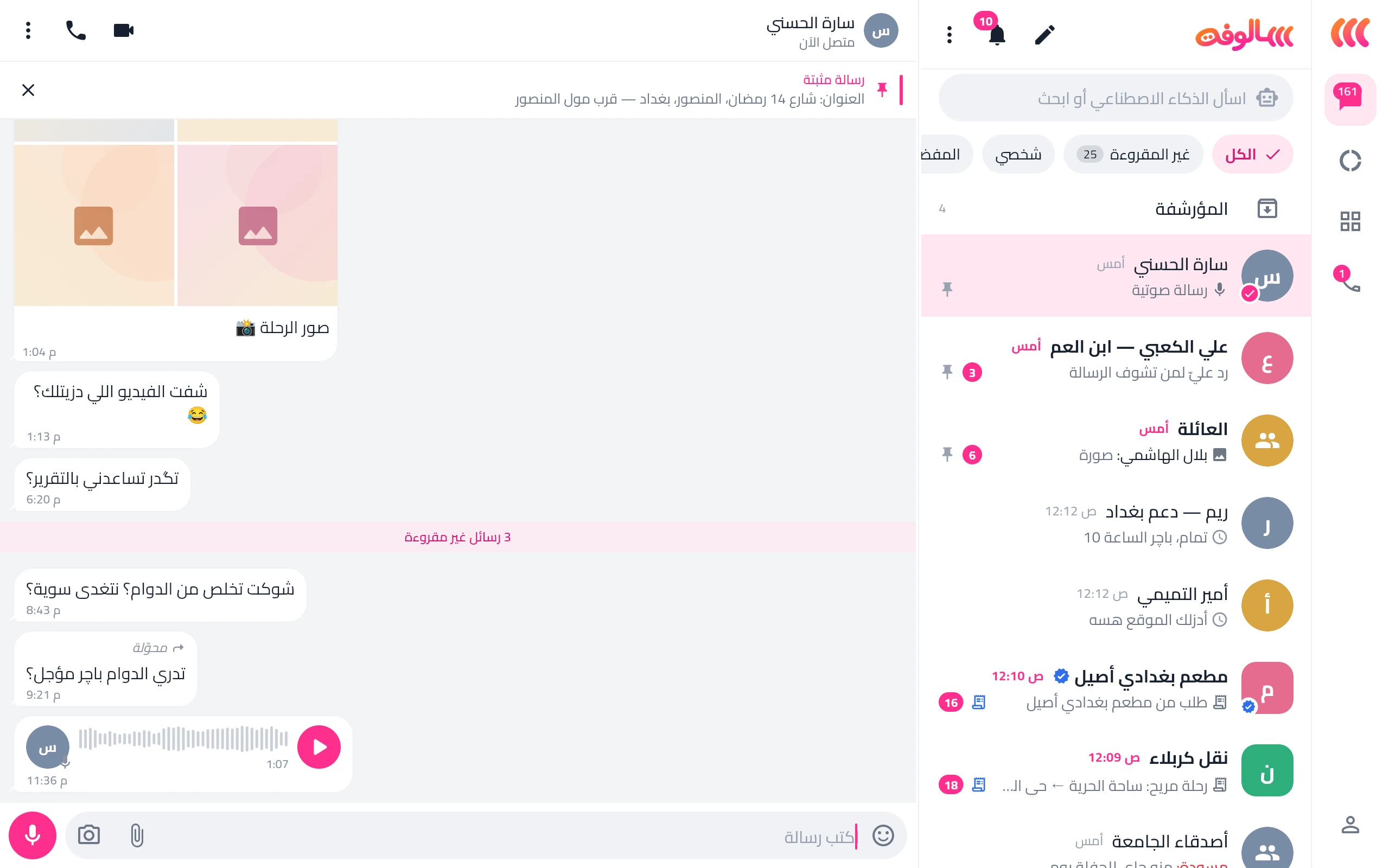
Get the app on your phone, open it in your browser, or install it on your computer. One account, and you link a computer to your phone by scanning a code.

Scan the code with your phone’s camera to open this page and get the app.
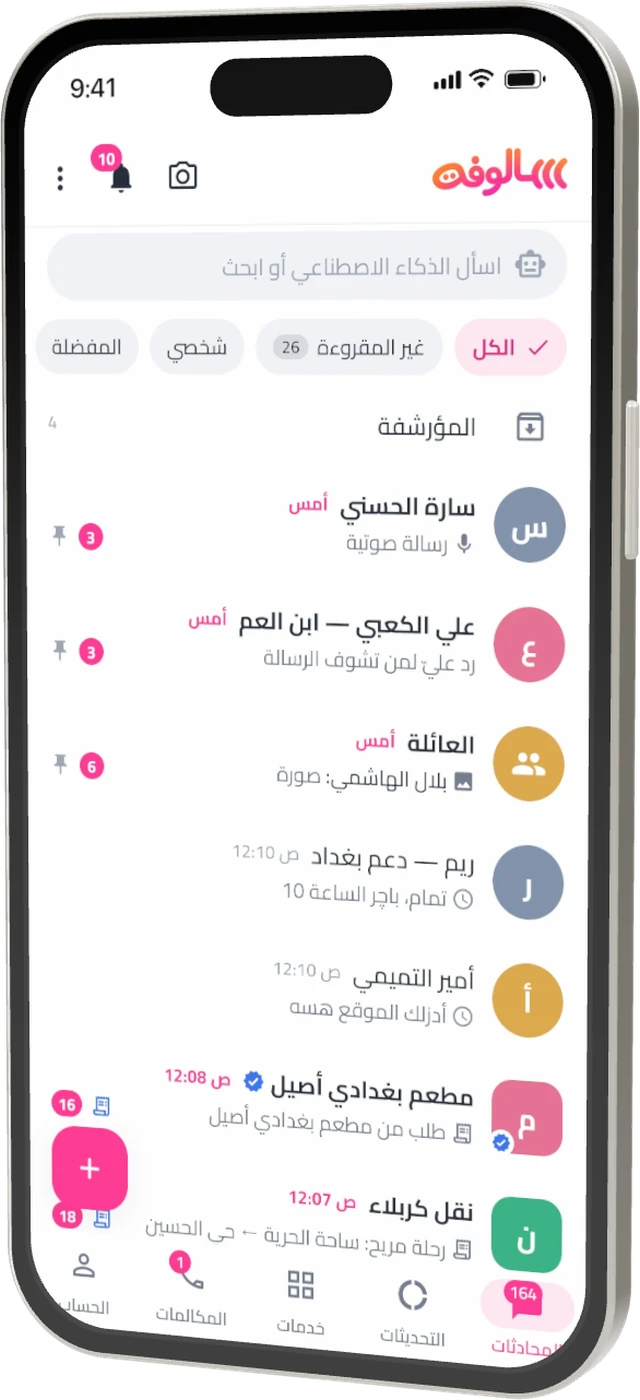
Choose your platform
Every platform uses the same account, and encrypted chats stay encrypted on every device.
Android
Checking…The full app for your phone, as a direct download of the installer.
- Android 7 or later
- Every feature, including contact matching and live location
- Updates install over the current version
iPhone and iPad
Coming soonWe are working on the App Store release.
- Until then: SALOPHA Web in Safari
- Sign in with your phone number
Web
AvailableThe full SALOPHA in your browser, nothing to install.
- A recent Chrome, Edge, Firefox or Safari
- Browser notifications
- One active tab keeps your session safe
macOS
Checking…The desktop app, with system notifications and a menu bar icon.
- macOS 12 or later
- Optional start at login
- Keyboard shortcuts
Windows
Checking…The desktop app for Windows.
- Windows 10 or later
- Taskbar icon
- Keyboard shortcuts
Linux
Checking…The desktop app for Linux distributions.
- Ubuntu 22.04 or similar
- Services open in the browser
Link your computer to your phone in seconds
- Open SALOPHA on the computerAt web.salopha.com or in the desktop app; a QR code appears and renews itself.
- Open the scanner on your phoneSettings, Linked devices, “Link a device”, or “Link a device (scan code)” in the chats menu.
- Scan and approvePoint the camera at the code and approve. The computer starts from that moment; manage or remove it from your phone.
You can also sign in on a computer with your phone number. Link up to five computers.
Installing, step by step
- Download the fileTap “Download for Android” and wait for it to finish.
- Allow the installIf your phone asks, allow the browser or file manager to install apps.
- Install and openTap “Install”, then open SALOPHA and sign in with your phone number.
- Update laterEach new version installs over the current one, and your chats stay as they are.
System requirements
| Platform | Minimum | Status |
|---|---|---|
| Android | Android 7.0 | Checking… |
| iPhone | Coming to the App Store | Coming soon |
| Web | Chrome or Edge 120, Firefox 125, Safari 17 | Available |
| macOS | macOS 12 | Checking… |
| Windows | Windows 10 | Checking… |
| Linux | Ubuntu 22.04 | Checking… |
Verify the file
Every file published here has a SHA-256 fingerprint, shown under its download button. To check it on a computer:
shasum -a 256 salopha-*.apk
Download SALOPHA from this page only, to be sure you get the genuine app.
Download questions
Why does Android ask to allow the install?
Because the app downloads straight from our website rather than a store. It is a normal Android step, and you can turn the permission off afterwards.
Will an update delete my chats?
No. Install the new version over the current one and your data stays on your phone.
Do I need my phone for the computer to work?
Once, to scan the link code, or sign in with your phone number instead. After that the computer works on its own.
How many devices can I link?
Up to five computers and browsers with your phone, and you can remove any of them from Linked devices.